Work with what is physically there.
Record products, quantities and locations in a focused interface built for daily warehouse tasks.
SAFE WAREHOUSE OPERATIONS
AItek Inventory complements your ERP or accounting system. Warehouse staff work with physical stock in a dedicated interface—without risking errors in your core records.
Built for warehouse staff. Clear control for managers.
Fewer errors · Faster checks · Better inventory control
Record products, quantities and locations in a focused interface built for daily warehouse tasks.
Keep visibility over inventory activity without exposing accounting workflows to operational mistakes.
CONNECTED INVENTORY CONTROL
When connected by API, AItek Inventory can compare quantities, product identities and locations with your ERP in real time.
VERIFICATION SIGNALAny mismatch shows the manager exactly which item needs attention.
Record physical realityWarehouse staff capture what is actually present.
Compare both systemsInventory checks the operational record against the ERP.
Review the exceptionThe manager verifies only the flagged inventory item.

INSIDE AITEK INVENTORY
DashboardStart with Dashboard to see your inventory overview and what needs attention.
About this preview: the empty-inventory example shows zero records. Forecasts and purchasing signals are simulated, not live ERP or accounting data.
Open Dashboard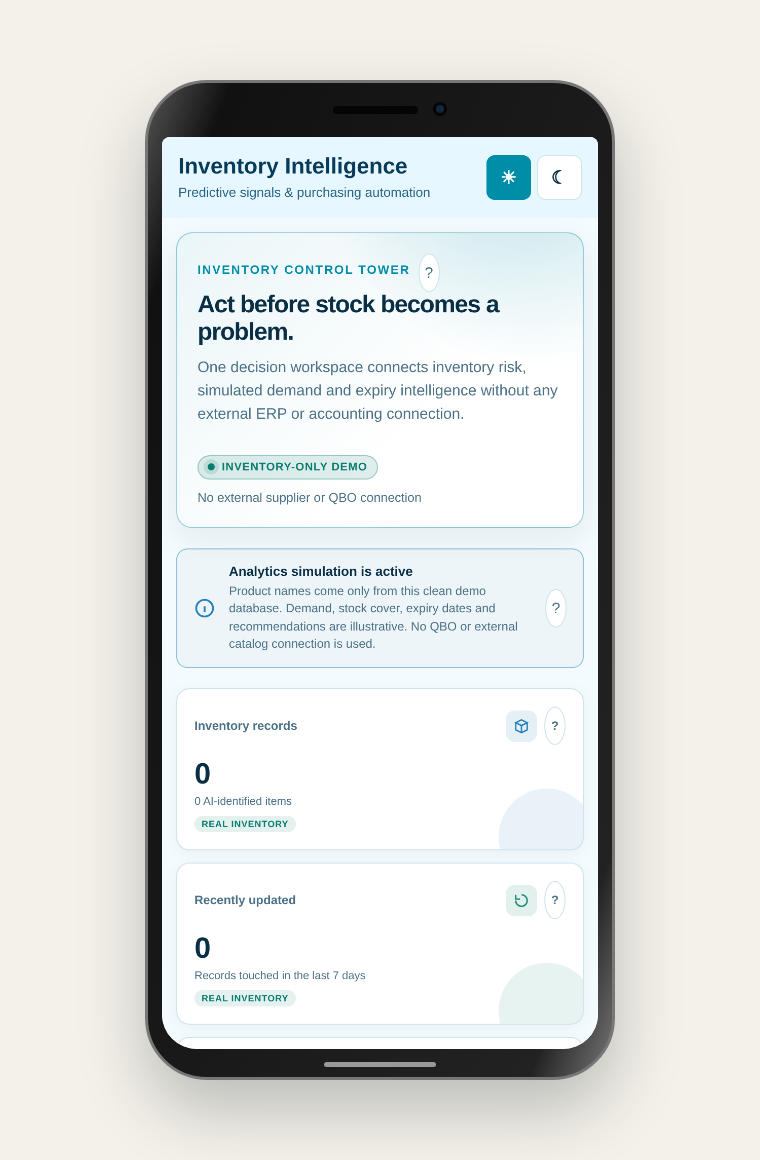
INSIDE AITEK INVENTORY
DataBrowse your inventory records, review product photos and details, and keep quantities and warehouse locations up to date.
Ready for your inventory. This preview shows an empty table. Your records will appear here as you add products.
Open Data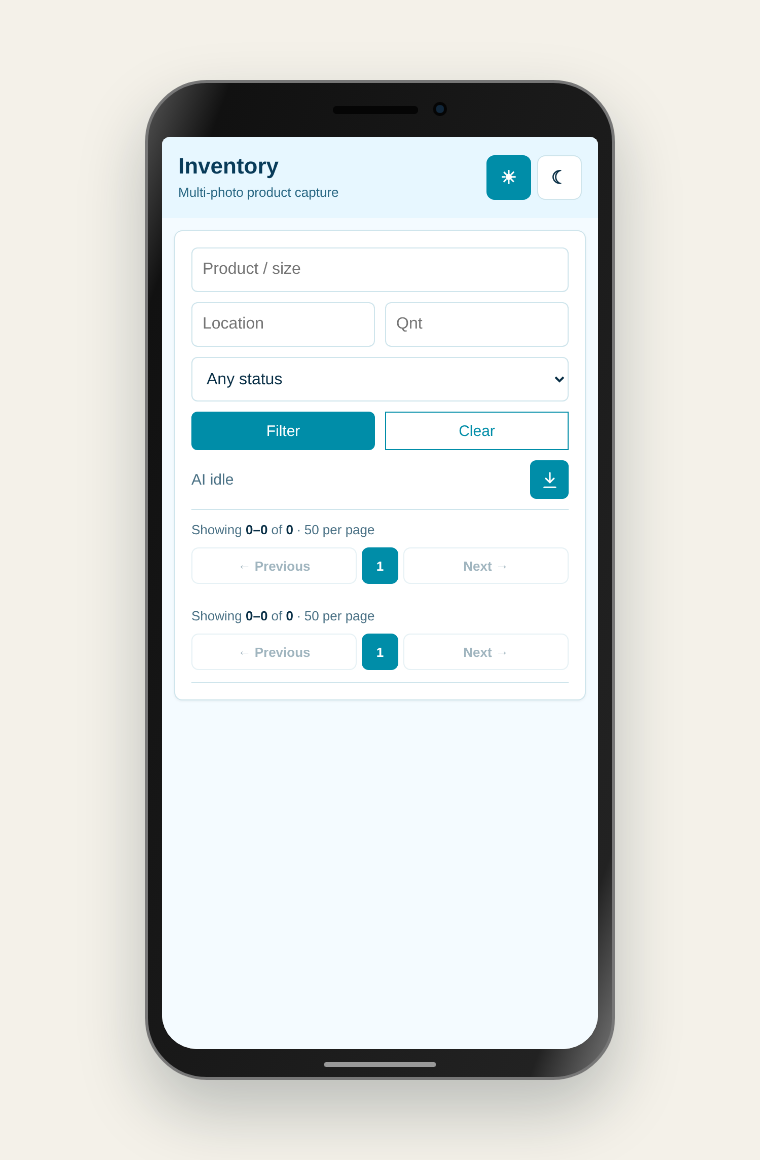
INSIDE AITEK INVENTORY
NewPhotograph the product box and label to create a new inventory record without needing the exact product name or SKU.
Use the real package. You can add up to four photos so the box, label and identifying details are easy to read.
Open New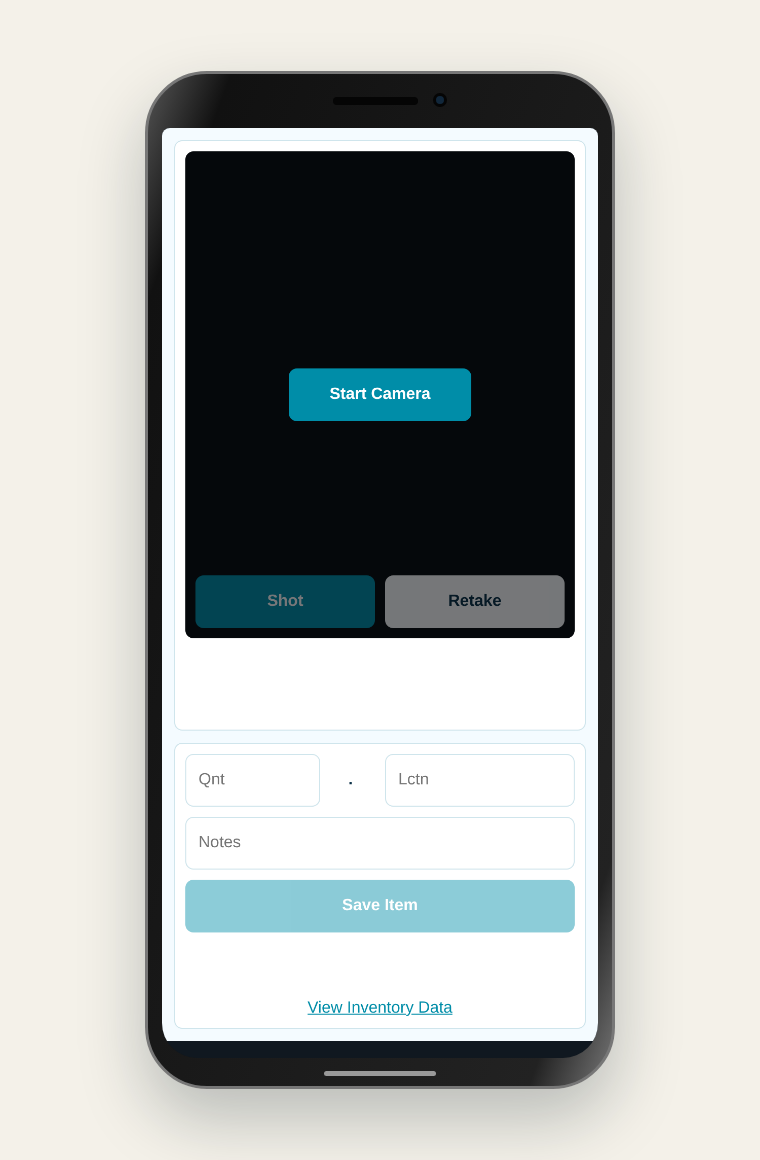
INSIDE AITEK INVENTORY
SearchPhotograph the box or label and let Inventory compare the visible packaging with your existing records.
Searching existing inventory. If the product has not been recorded yet, open New and create it from the package photos.
Open Search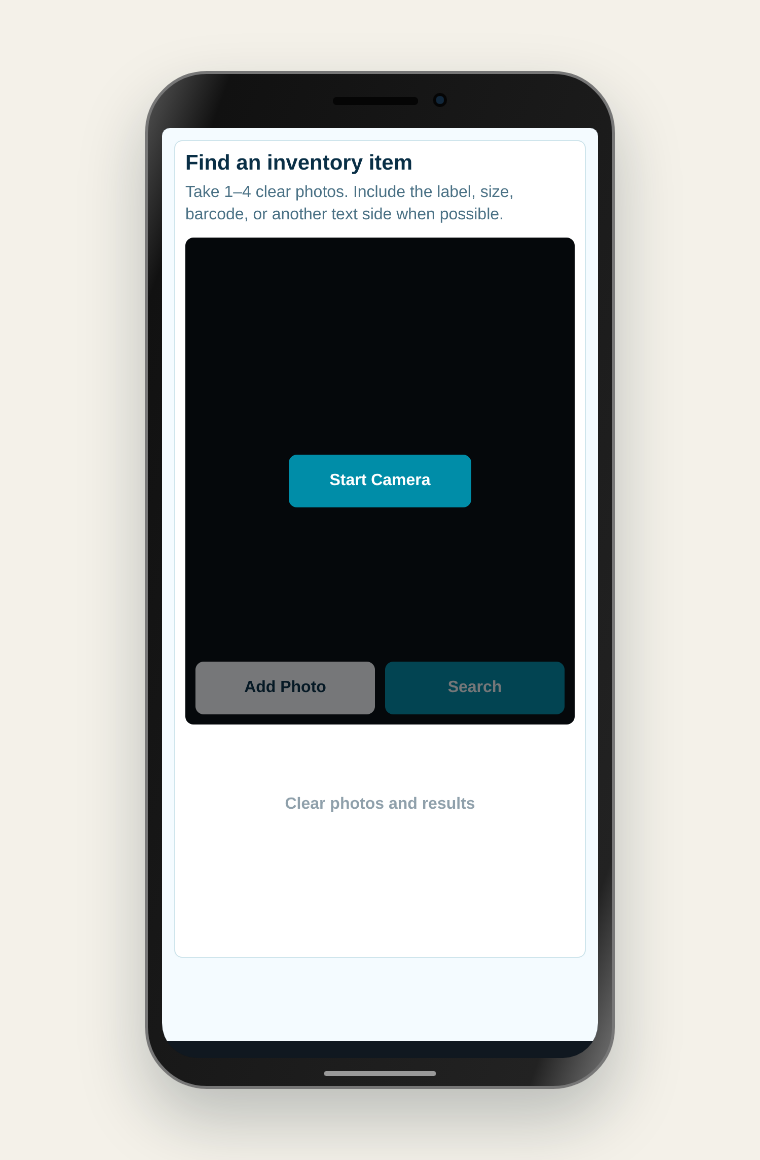
INSIDE AITEK INVENTORY
UploadSelect product photos taken earlier on your phone or computer and use them to create a new inventory record.
One product per upload. All selected photos become one inventory item, so use a separate upload for each product.
Open Upload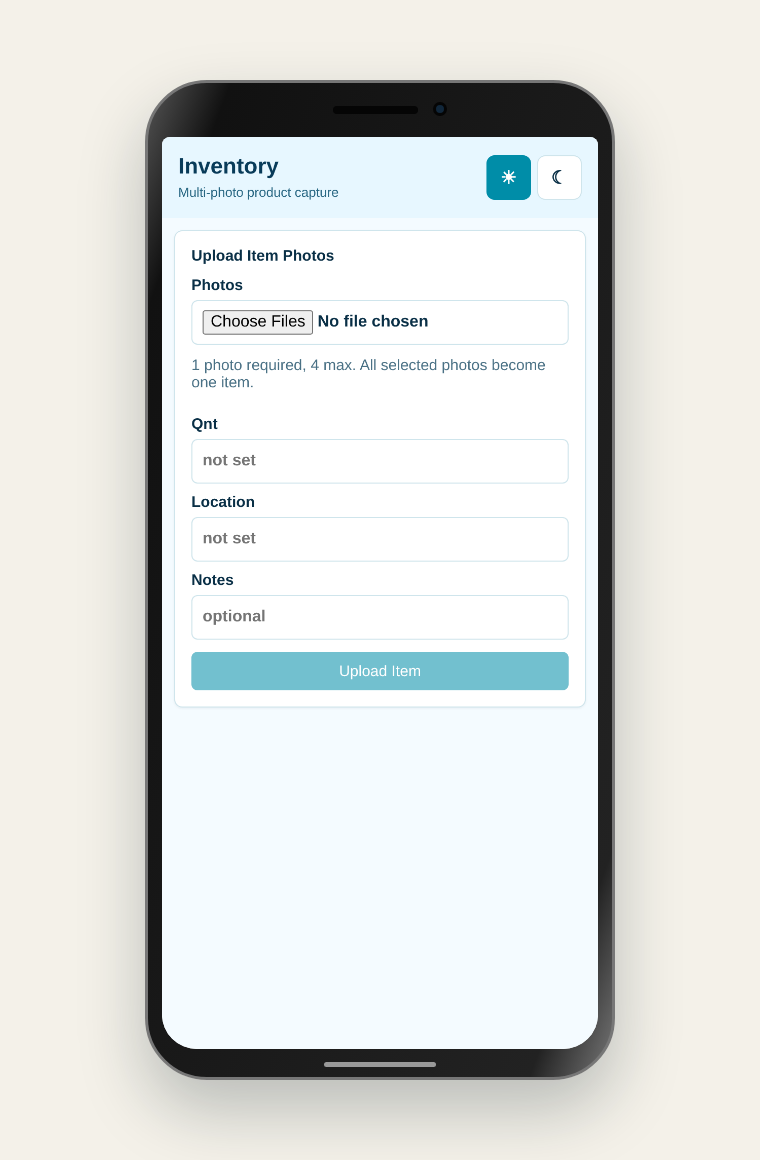
AITEK INVENTORY · FAQ
Practical answers about ERP integration, photo identification, warehouse workflows and the current system capabilities.
At first, AItek Inventory may appear to duplicate information already stored in your ERP. In practice, maintaining a focused operational layer alongside an ERP is both useful and common.
An ERP is usually built around known product records, SKUs, accounting codes and financial transactions. Warehouse employees, however, begin with physical boxes and labels that may use different names—or may not show the internal ERP code at all.
In many organizations, warehouse employees have no direct access to the ERP, or their access is deliberately restricted. AItek Inventory gives them a simpler, task-specific workspace without exposing sensitive accounting functions. Employees can photograph products, verify quantities and update warehouse locations without the risk of accidentally deleting records, changing financial data, selecting the wrong accounting item or disrupting an ERP workflow.
AItek Inventory provides:
When AItek Inventory is synchronized with an ERP, a difference in the product name, quantity or warehouse location becomes an immediate signal that the records should be reviewed. Instead of allowing discrepancies to remain unnoticed, the two systems provide a practical cross-check between the physical warehouse and the business database.
This significantly reduces data-entry mistakes, protects accounting records and makes inventory counts and reconciliation much faster. The ERP remains the financial or master system of record, while AItek Inventory serves as the controlled visual layer used by warehouse employees.
No. AItek Inventory complements an ERP or accounting platform. It focuses on photographing packages, identifying products, recording quantities and locations, and finding records visually. Financial accounting, purchasing, invoicing and other ERP processes remain in the connected business system.
Inventory analyzes visible information such as package design, product names, label text, barcodes, brand and package size. Search compares those details with stored visual references and presents the closest existing matches. The employee reviews the results and confirms the correct item.
No. Employees can begin with the physical product in front of them. A clear photograph of the box or label can be used even when the exact product name, internal SKU or accounting code is unknown. A visible barcode or SKU can improve identification when available.
Use clear, well-lit photographs with readable text. The most useful set includes the complete package, main product label, barcode or SKU, and package size or another identifying side. Avoid glare, motion blur, cropped labels and distant photographs. Up to four photos can be attached to one item.
New creates a record from photos taken with the device camera. Search uses camera photos to find an item already stored in Inventory. Upload creates a record from photos previously saved on the phone or computer.
Always review a suggested match before updating it. If the correct product appears among the alternatives, select that record. If no suitable record exists, use New or Upload to create one. Additional photos of the label, barcode or package size can improve future searches.
Yes, when the distinguishing details are visible. Include the size, barcode, model number, flavour, variant or other identifying text. Different packages can remain separate visual references, while records representing the same sellable product can be joined into a product group. Human confirmation remains important when packages are nearly identical.
Yes. Open the record in Data and select Edit. Authorized users can correct the product name, description, brand, SKU, barcode, package type and package size. Photos can also be added or replaced within the permitted limit. Physical quantity and location remain employee-entered values rather than AI assumptions.
Edit the record in Data, or find it with Search and use the quick-update fields in the confirmed result. Quantity and location changes are recorded in the item history.
Yes, integrations can be developed through APIs or system-specific connectors. Synchronization rules depend on the ERP, product identifiers and business process. The current demonstration is not connected to a live ERP or accounting database; a production integration must be configured separately.
Yes. Data can export the currently visible inventory table as a CSV file. Apply filters first to export a specific product, location, quantity or processing status.
Inventory requires authentication. Records are associated with authorized users, and database-level ownership controls separate private data. Production security also depends on configured backups, retention policies, administrator permissions and external integrations. Data is not automatically sent to an ERP unless an integration is deliberately configured.
Yes. Multiple authorized employees can use Inventory from supported phones or computers. User permissions and record visibility should be configured for the organization. Private records remain associated with their owner, while shared operational records can be made available according to the deployment policy.
Each lot or batch should be recorded separately when its expiration date must be tracked independently. Each record can retain its own quantity, location, photos and expiration information in the notes. Related records may be joined into the same product group while keeping their physical details separate.
Dedicated lot and expiration-date fields are not yet implemented in the current demonstration, and Dashboard expiration warnings are illustrative. Until full lot tracking is added, enter the expiration date in Notes and keep each lot as a separate record.
Create a separate record for each physical location, with its own quantity and location. The records can be joined into the same product group so Search recognizes them as the same product while still showing each location separately. This preserves accurate location-level counts.
The current interface allows authorized users to edit records and remove individual photos, but it does not yet provide a button for permanently deleting an entire product record. A complete record must currently be removed by an authorized administrator. A production delete or archive workflow should include confirmation, permission checks and an audit record to prevent accidental data loss.
Open the live demo from the menu above. Sign in with Google or request a one-time email code; first-time users receive Inventory access automatically.
Open Inventory demo →